1
The + button to log everything
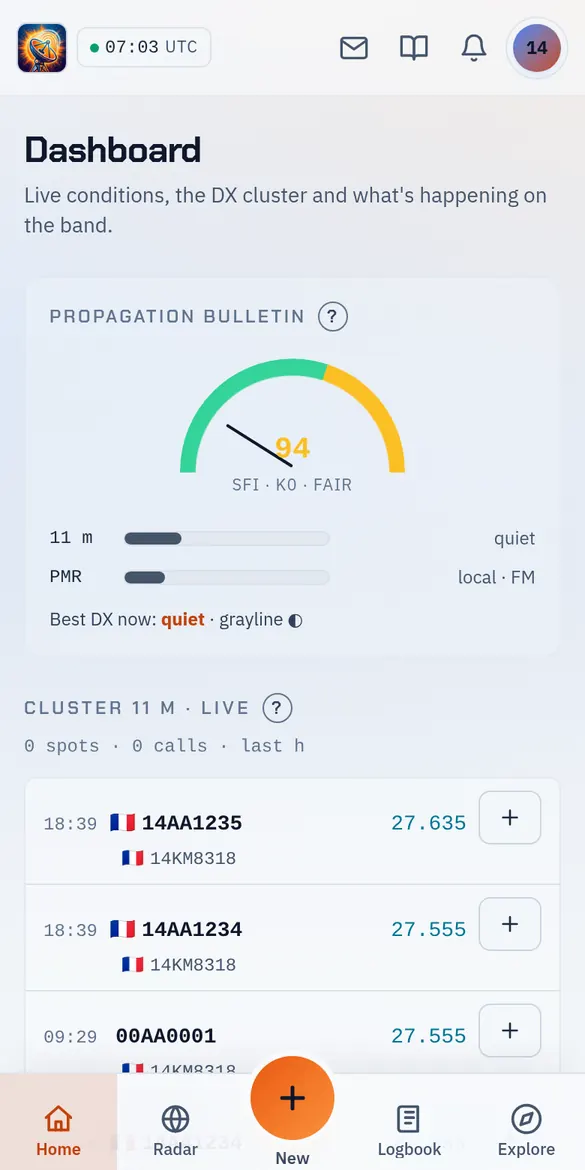
At the bottom of the screen, the big orange + "New" button is your starting point. On a computer it's at the bottom right.
Everything you need to get started with PingDX, step by step.
Six steps, with the screens as you will see them. You can print this guide and keep it next to your radio.
At the bottom of the screen, the big orange + "New" button is your starting point. On a computer it's at the bottom right.
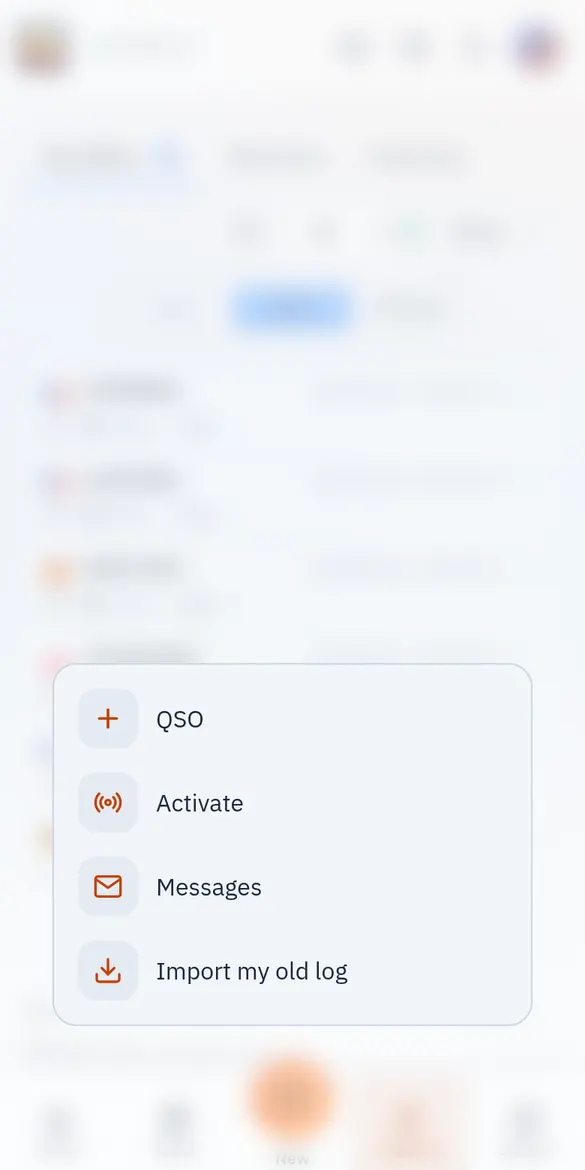
The + button opens a small menu. Tap "QSO" to log a contact. "Import my old log" brings in a log kept elsewhere (ClusterDX, 11DX.net, ADIF file).
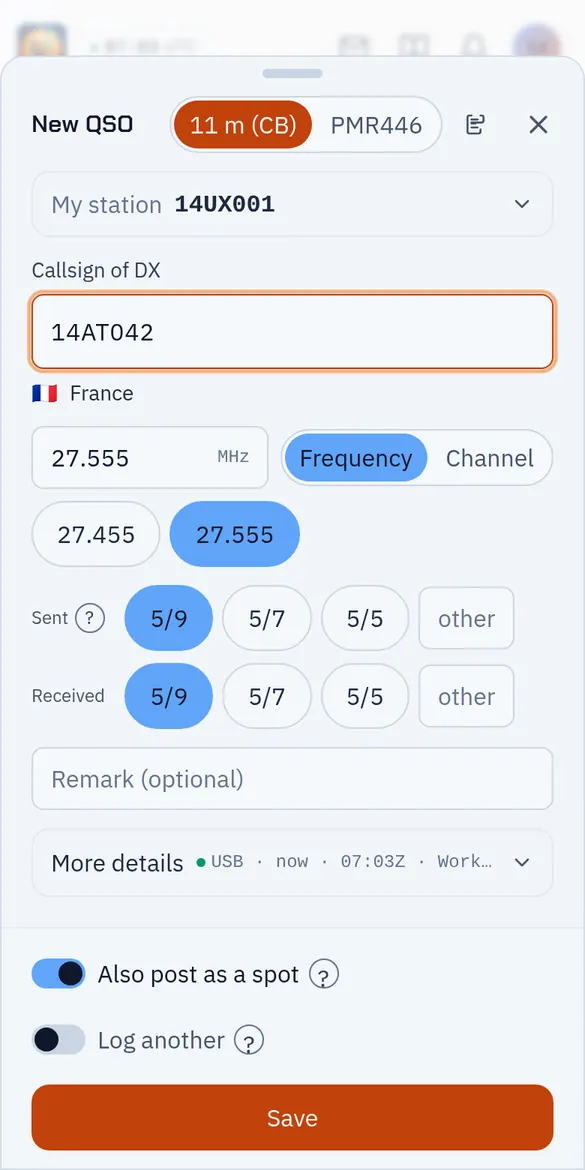
Type the other station's callsign. The frequency is already filled in with the last one you used: tap a recent frequency or type it ("555" is enough for 27.555). A 5/9 report is suggested. Tap "Save": that's it!
"Logbook", at the bottom of the screen, lists all your QSOs, newest first. Tap a line to see or correct it. Your contacts are kept even without a network.

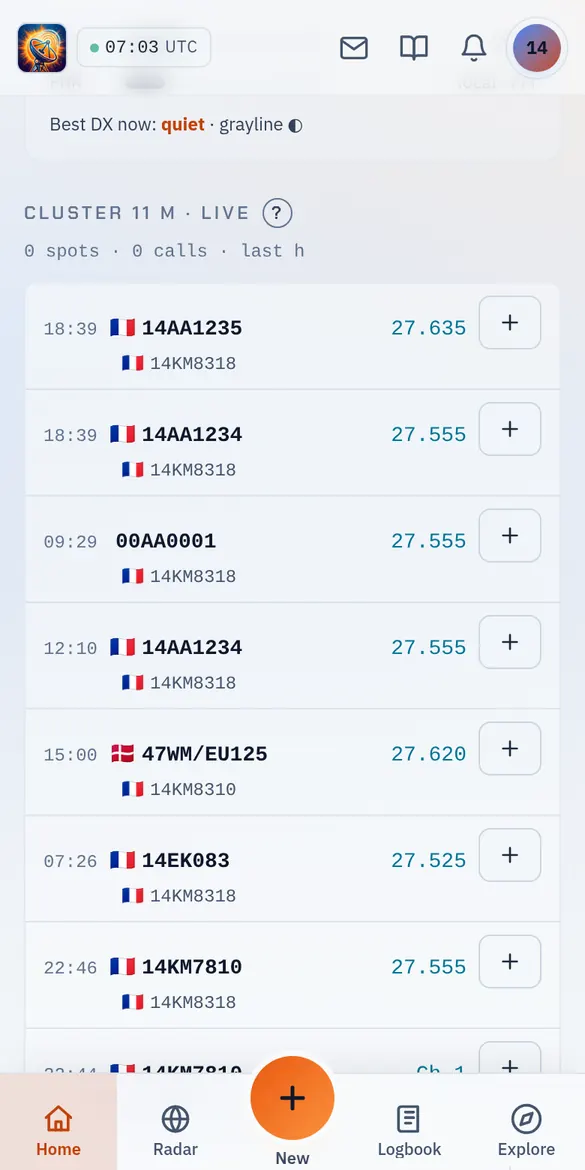
On the home page, "11 m cluster · live" shows the stations heard right now by other operators. The + button on a line logs the contact with that station straight away.
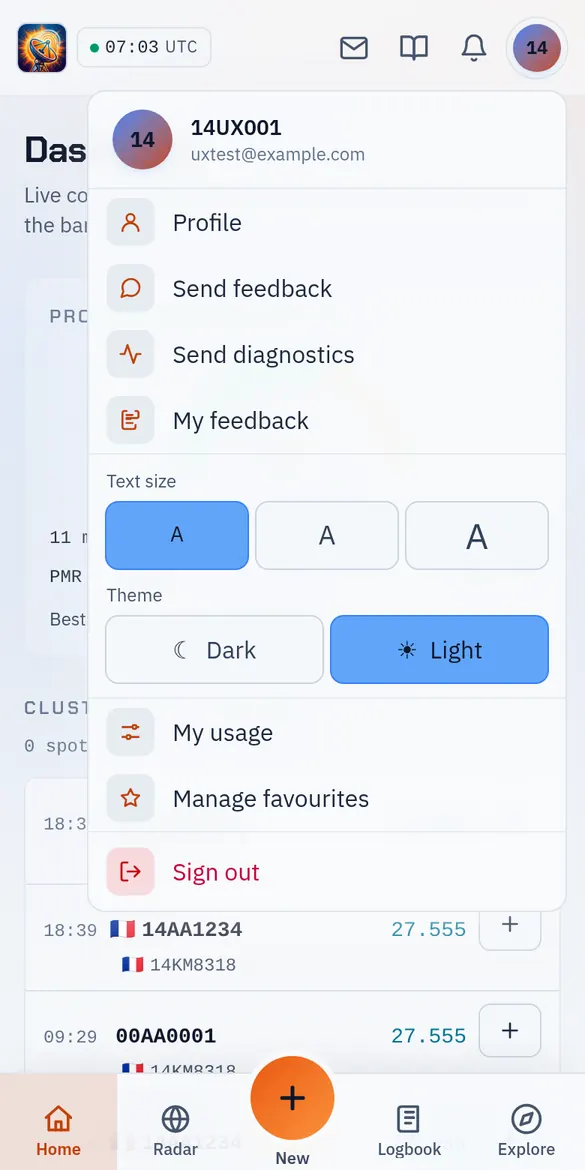
Tap the circle with your initials, top right. "Text size" enlarges the whole display; "Theme" switches to light, easier to read in daylight.
PingDX installs like an app, without any app store: an icon on your home screen or desktop, and you stay signed in.
PingDX is built by Julien, on his own, not by a big company. A question, something stuck, an idea? Write to me straight from the app: I answer.